Code Image Generator Review: Is Carbon Still the Best in 2026?
⚡ Executive Summary
Code image generator Carbon reviewed. Learn how to transform raw source code into professional visuals to boost your developer branding and engagement.
Disclaimer: This review is based on publicly available information, including official documentation, the public repository, and the official pricing page; it is not a laboratory benchmark.
In the modern era of developer advocacy and technical education, the medium of communication has shifted. While raw text in a Markdown file is sufficient for a GitHub README, it is insufficient for a LinkedIn post, a technical slide deck, or a high-conversion landing page. This is where Carbon enters the ecosystem. As a specialized code image generator, Carbon bridges the gap between raw source code and visual communication, allowing developers to share logic in a format that is optimized for human consumption and social algorithms.
What is a Code Image Generator? #
A code image generator is a specialized utility that converts raw text-based source code into a high-resolution, aesthetically styled image. By applying syntax highlighting, custom themes, and window framing, these tools transform plain text into a visual asset suitable for presentations, social media, and professional documentation, ensuring code remains legible and visually appealing across all devices.
Overview: Why Carbon Dominates the Visual Code Space #
Carbon is a web-based utility that allows developers to transform their source code into professional-grade images. Rather than taking a clunky screenshot of a text editor—which often includes distracting UI elements, inconsistent padding, or poor contrast—Carbon provides a controlled environment to "frame" code.
The tool has trended because of the rise of "Developer Branding." With the explosion of technical content on platforms like X (Twitter), Threads, and Instagram, the demand for "beautiful code snippets" has skyrocketed. Carbon solves a specific pain point: the need for professional-grade visual assets without requiring a graphic design background. It essentially treats code as art, providing the lighting, framing, and typography necessary to make a snippet "pop" in a social media feed.
Key Technical Specifications & Fast Facts #
To understand where Carbon fits into your workflow, it is essential to look at its operational footprint. Unlike heavy-duty development tools, Carbon is a lightweight client-side application.
| Specification | Detail |
|---|---|
| License | Open Source (MIT) |
| Hosting Type | Web-based (SaaS/Client-side) |
| Free Tier Availability | 100% Free |
| API Access | Limited/Community-driven |
| Supported Platforms | Any modern web browser (Chrome, Firefox, Safari, Edge) |
For those interested in the underlying architecture, the Carbon public repository provides full transparency into how the rendering engine handles various language syntaxes.
In-Depth Feature Breakdown & Real-World Use Cases #
Carbon is deceptively simple, but its utility as a code image generator lies in the granularity of its customization. Below is a technical analysis of its primary feature sets.
1. Multi-Language Syntax Highlighting #
Carbon does not merely change the color of text; it utilizes robust syntax highlighting engines to ensure that keywords, strings, comments, and functions are visually distinct. This is critical for educators who need to draw attention to specific logic patterns.
Real-World Use Case: A technical writer creating a tutorial on asynchronous JavaScript. By selecting the "JavaScript" language profile, the async and await keywords are automatically highlighted, allowing the reader to immediately identify the non-blocking nature of the code without reading every line.
2. Customizable Themes and Visual Framing #
The "beauty" of Carbon comes from its ability to simulate a macOS-style window frame, complete with the iconic red, yellow, and green window controls. Users can modify the background color, the window padding, and the shadow depth.
Real-World Use Case: A developer building a personal brand on LinkedIn. By matching the background color of the Carbon snippet to their personal brand palette (e.g., a deep navy or a soft pastel), they create a cohesive visual identity across their posts. This level of polish is often what separates a hobbyist post from a professional industry insight.
3. Export Formats: PNG vs. SVG #
Carbon allows users to export their creations in two primary formats. PNGs are ideal for social media and quick sharing, while SVGs (Scalable Vector Graphics) are indispensable for high-resolution documentation and print.
Real-World Use Case: An engineer preparing a technical presentation for a keynote. Exporting as an SVG ensures that the code remains crisp and legible even when projected on a 4K screen, avoiding the pixelation common with standard screenshots. For those managing a technical blog, ensuring high-quality visuals is a key part of the AdSense Approval Checklist 2026: Get Your Site Approved Fast, as user experience and professional presentation are weighted heavily.
Step-by-Step Configuration Guide #
Using this code image generator requires no installation or account creation, which is one of its strongest value propositions.
Phase 1: Input and Language Selection #
- Input Your Code: Navigate to
https://carbon.now.sh. Paste your source code into the main editor window. - Select Language: Click the language dropdown (usually defaults to "Auto-detect") and select the specific language of your snippet. This ensures the syntax highlighting engine applies the correct regex patterns for that language.
Phase 2: Aesthetic Customization #
- Theme Selection: Choose a color scheme (e.g., Monokai, Night Owl) that suits your preference.
- Background Configuration: Select a solid color or a gradient for the area surrounding the code window.
- Padding Adjustment: Use the "Padding" slider to increase the whitespace between the code window and the edge of the image. This is essential for creating "breathable" designs for Instagram or slide decks.
Phase 3: Final Export #
- Fine-Tune Window Settings: Toggle the "Window Controls" on or off depending on whether you want the "OS window" look or a clean, borderless snippet.
- Export: Click the "Export" button. Choose PNG for immediate sharing or SVG for professional documentation.
Technical Trade-offs and Edge Cases #
While Carbon is highly effective, users should be aware of specific technical limitations when using it as their primary code image generator.
The "Static Text" Problem #
The most significant trade-off is that the output is an image, not text. This means the code in the image is not searchable by search engines (SEO) and is not copy-pasteable by the end-user. To mitigate this, professional bloggers should always provide the raw code in a <pre><code> block below the image.
Rendering Inconsistencies #
Because Carbon is a client-side application, it relies on the browser's rendering engine. In rare cases, slight variations in how different browsers (e.g., Safari vs. Chrome) render specific fonts can lead to minor differences in line-wrapping or character spacing in the final export.
Handling Large Files #
Carbon is designed for "snippets," not entire files. Attempting to paste a 500-line class will result in an image that is either too long to be legible or a file size that is prohibitively large for web upload. The best practice is to break long logic into smaller, conceptual chunks of 15-30 lines.
Objective Pros & Cons Matrix #
| Pros | Cons |
|---|---|
| Zero Friction: No sign-up or payment required. | Lack of Persistence: No cloud library to save snippets. |
| High Visual Fidelity: Industry-standard professional output. | Manual Process: No bulk-processing or API for mass generation. |
| Open Source: Community-driven themes and updates. | Static Output: Non-searchable and non-copyable text. |
| Platform Agnostic: Works on any modern browser. | Browser Dependency: Minor rendering variations possible. |
Carbon vs. Alternatives: Which Code Image Generator to Choose? #
Carbon is the pioneer, but competitors like Ray.so and CodeKeep have entered the fray with different philosophies.
| Feature | Carbon | Ray.so | CodeKeep |
|---|---|---|---|
| Customization | Extremely High | Moderate/Minimalist | High |
| Speed of Use | Fast | Very Fast | Moderate |
| Pricing | Free | Free | Freemium |
| Storage/Library | None (Local only) | None | Built-in Snippet Manager |
| Best For | High-detail branding | Quick, clean shares | Organizing code libraries |
While Carbon offers the most granular control over the "look," Ray.so is often preferred by those who want a "one-click" aesthetic without fiddling with sliders. CodeKeep, on the other hand, is less of a "generator" and more of a "management system." For a broader look at how these utilities compare to other data tools, see our CyberChef Data Converter Review (2026): The Ultimate Guide.
Pricing Tiers & Value Assessment #
Carbon operates on a completely free model. According to the official site, there are no "Pro" tiers, no hidden subscriptions, and no paywalls for specific themes or export formats.
Value Assessment: The value proposition is infinite because the cost is zero. However, from a professional standpoint, the "cost" is the time spent manually configuring each image. For the vast majority of developers and educators, the free nature of the tool far outweighs the lack of automation.
Frequently Asked Questions #
Is the code in Carbon images indexed by Google? #
No. Because Carbon exports images (PNG/SVG), the text within the image is not readable by search engines. If SEO is a priority for your blog, always provide the raw code in a standard HTML code block below the image to ensure searchability.
Can I use Carbon for commercial projects? #
Yes. Since the tool is free and the output is a standard image file, you can use the resulting images in paid courses, commercial books, or corporate presentations without licensing fees.
Does Carbon support custom fonts? #
Carbon supports a variety of system and web fonts. While you cannot upload your own .ttf file directly into the web interface, you can choose from a wide array of professional coding fonts that ensure maximum readability.
How does Carbon handle very long snippets of code? #
Carbon is optimized for snippets. Very long pieces of code can become difficult to read in an image format and may result in extremely large file sizes. It is recommended to break long logic into smaller, conceptual chunks for better visual impact.
Is there an API for Carbon? #
While there is no official paid API, the open-source nature of the project allows developers to build their own wrappers or use community-driven implementations to automate the code image generator process.
Final Verdict & Editorial Rating #
Carbon remains the gold standard for developer branding and visual documentation. It does not attempt to be a full-fledged IDE or a snippet manager; instead, it does one thing—creating beautiful code images—exceptionally well.
The primary weakness is the lack of a "save" state or bulk export capability, which can be a bottleneck for power users. However, for the target audience of developers and educators, the level of polish it provides is unmatched. If you are looking for more tools to optimize your development environment, feel free to explore All Tool Reviews on PulseTools: the Complete Index.
Who should use Carbon?
- Technical Influencers: To create high-engagement social media content.
- Educators: To create clean, distraction-free slides for coding bootcamps.
- Documentation Specialists: To add visual breaks in long-form technical guides.
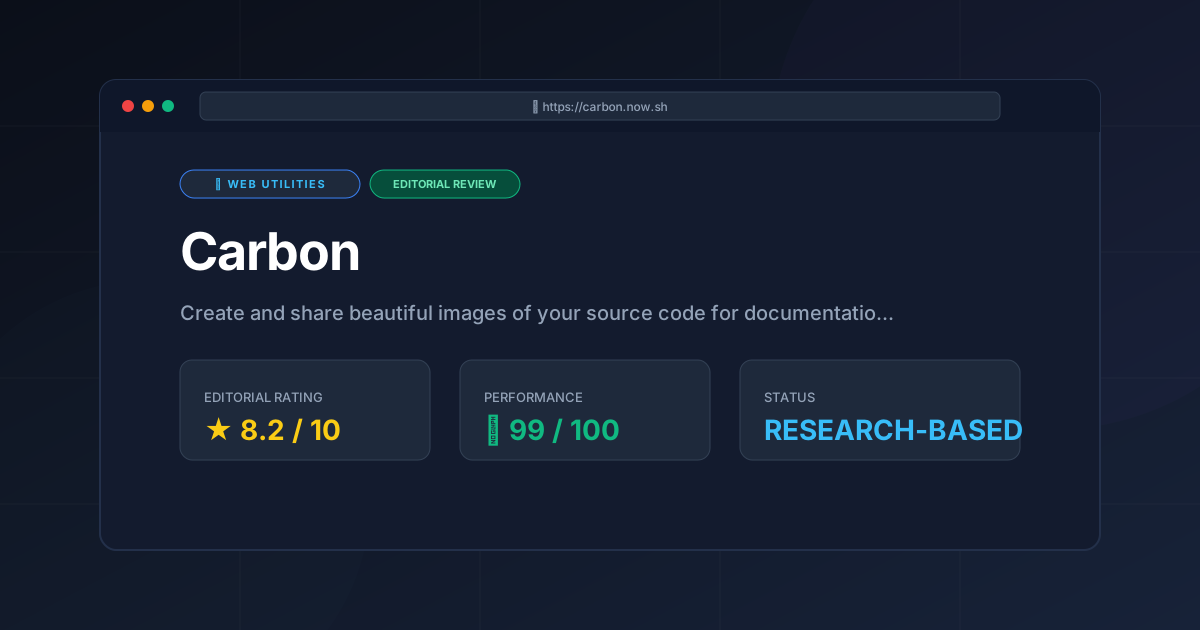
Editorial Rating: 8.2/10
A near-perfect utility that is held back only by its manual nature and lack of integrated storage. It is an essential tool for any developer's visual toolkit.
More Tools Worth Reading
Valibot
Web UtilitiesLightweight validation is key to performance. Discover how Valibot reduces bundle sizes and improves TTI—read our full 2026 technical analysis.
Webhook.site
Web UtilitiesWebhook tester tools like Webhook.site simplify API debugging. Learn how to inspect payloads and mock responses to accelerate your development workflo...
WebPageTest
Web UtilitiesPage speed test analysis made easy. Discover how WebPageTest provides forensic performance data to boost your Core Web Vitals and search rankings.