Design Asset Management: Eagle Review (2026) & Verdict
⚡ Executive Summary
Design asset management made simple. Discover how Eagle organizes your visual library with local-first storage and powerful tagging. Read the full review.
Disclaimer: This review is based on publicly available information, including official documentation, pricing pages, and public repositories; it is not based on laboratory benchmarks or first-person installation tests.
Overview: What is Eagle and Why is it Trending? #
In the modern design workflow, the "inspiration phase" often leads to a chaotic accumulation of screenshots, SVG icons, and reference images scattered across various folders and browser bookmarks. Eagle is a dedicated design asset management solution specifically engineered to solve this fragmentation for UI/UX designers and digital artists.
Unlike generic cloud storage or social curation platforms, Eagle functions as a local-first library that allows users to collect, organize, and filter vast quantities of visual data. It has trended recently because the industry is shifting away from "infinite scroll" discovery toward "curated ownership," where designers want a searchable, offline-accessible database of assets they actually own and can manipulate. By treating images as data—assigning tags, colors, and ratings—Eagle transforms a simple folder of images into a functional design database.
What is Design Asset Management? #
Design asset management is the process of organizing, storing, and retrieving visual elements—such as icons, typography samples, color palettes, and UI screenshots—using metadata and tagging. Unlike standard file storage, it allows creators to categorize assets by visual attributes (like color or shape) rather than just folder names, streamlining the creative research phase.
Key Technical Specifications & Fast Facts #
| Specification | Detail |
|---|---|
| License | Paid (One-time purchase/License model) |
| Hosting Type | Local-first (User-managed storage) |
| Free Tier Availability | Trial period available (Check official site for duration) |
| API Access | Limited/Internal (Refer to documentation for plugins) |
| Supported Platforms | Windows, macOS |
In-Depth Feature Breakdown & Real-World Use Cases #
Eagle is not merely a gallery app; it is a metadata engine for visual assets. To understand its utility, we must analyze the three pillars of its technical architecture: capture, organization, and retrieval.
1. Browser Extension Capture #
The friction between finding an image on the web and saving it to a local drive is a primary pain point for designers. Eagle addresses this with a dedicated browser extension. Instead of the traditional "Right Click $\rightarrow$ Save As $\rightarrow$ Navigate to Folder," the extension allows for "drag-and-drop" capture or one-click saving.
Real-World Workflow:
A UI designer browsing a portfolio site finds a specific navigation pattern. Using the extension, they capture the image and immediately assign a tag like #Navigation and #Minimalist before the image even hits their hard drive. This eliminates the "cleanup phase" usually required at the end of a research session.
2. Tag-Based Organization & Smart Folders #
Eagle moves away from the rigid hierarchical folder structure of Windows Explorer or macOS Finder. While it supports folders, its power lies in Tags and Smart Folders.
- Tags: Assets can have multiple tags. An image can be tagged as
#Blue,#LandingPage, and#SaaS. - Smart Folders: These are essentially saved searches. A Smart Folder can be configured to automatically display any asset that is tagged
#BlueAND#LandingPagebut NOT tagged#Mobile.
Practical Application:
When building a design system, a user might use a Best Color Palette Generator: Coolors Review (2026) & Verdict to define their brand colors. They can then use Eagle's "Filter by Color" feature to instantly pull every asset from their library that matches a specific hex code from their Coolors palette, ensuring visual consistency across their moodboard.
3. Support for Diverse File Formats #
Many image organizers struggle with non-raster files. Eagle provides native support for a wide array of formats, including .jpg, .png, .gif, .webp, and critically, .svg and .pdf. It can also handle design-specific files like .psd and .ai by generating previews.
Real-World Workflow:
A digital artist managing a library of 5,000+ SVG icons can preview them instantly without opening a vector editor. This makes Eagle an ideal companion for those who also use a Virtual Whiteboard Review: Excalidraw (2026) Features & Verdict to map out user flows; they can quickly find the right icon in Eagle and drag it directly into their whiteboard session.
Implementing a Design Asset Management Workflow #
For those transitioning from a folder-based system to a professional design asset management strategy, the following implementation path is recommended:
Technical Configuration Steps #
- Library Initialization: Upon installation, define your "Library Folder." Since Eagle is local-first, it is highly recommended to place this folder on a drive with ample space or a synced cloud folder (like Dropbox or Google Drive) for backup purposes.
- Importing Legacy Assets: Use the "Import" function to bring in existing folders. Eagle will maintain the folder structure but allow you to begin overlaying tags.
- Extension Setup: Install the Eagle browser extension on Chrome, Safari, or Firefox. This is the primary "input" valve for your inspiration.
- Establishing a Tagging Taxonomy: Before importing thousands of images, decide on a naming convention (e.g., using prefixes like
Type:Icon,Type:UI,Style:Flat). - Creating Smart Folders: Set up your first few Smart Folders based on your most frequent searches (e.g., "Current Project X" or "High-Priority References").
Edge Cases and Trade-offs #
- Cloud Sync Conflicts: If using Dropbox or OneDrive, users should avoid opening the library on two machines simultaneously to prevent database conflicts.
- Large File Performance: While Eagle handles previews well, importing thousands of 1GB+ PSD files can lead to initial indexing lag. It is recommended to import in batches of 500.
- External Links: Eagle can store URLs alongside images. This is useful for tracking the original source of a design pattern, though the link may break if the original website goes offline.
Objective Pros & Cons Matrix #
| Pros | Cons |
|---|---|
| Local Control: No subscription fees for storage; you own your data entirely. | Storage Responsibility: Users must manage their own backups and disk space. |
| Powerful Filtering: Filter by color, shape, tag, and rating simultaneously. | Platform Limitation: Limited to desktop (Windows/macOS); no dedicated mobile app. |
| High Performance: Fast indexing and scrolling even with 10,000+ assets. | Learning Curve: Transitioning from folders to tags requires a mindset shift. |
| Format Versatility: Native support for SVGs, GIFs, and design source files. | Syncing Dependencies: Cloud sync relies on third-party providers like iCloud. |
Eagle vs. Alternatives for Design Asset Management #
Eagle occupies a middle ground between a social discovery tool and a professional DAM.
| Feature | Eagle | Are.na | |
|---|---|---|---|
| Primary Purpose | Local Asset Management | Visual Discovery/Social | Collaborative Research |
| Storage | Local Hard Drive | Cloud (Proprietary) | Cloud |
| Privacy | Private by default | Public/Secret Boards | Variable/Community-based |
| Speed | Instant (Local) | Network Dependent | Network Dependent |
| Pricing | Paid (One-time) | Free | Free / Paid Tiers |
| Best For | Professional Designers | Casual Inspiration | Intellectual Curation |
Pricing Tiers & Value Assessment #
Eagle operates on a paid model, typically offering a one-time purchase license rather than a monthly subscription. Detailed pricing can be found on the Eagle Pricing Page. The value proposition is centered on "Lifetime Ownership."
Is the paid tier worth it?
For a professional UI/UX designer, the cost is negligible compared to the time saved in asset retrieval. If you spend 15 minutes a day searching for "that one icon" or "that reference image from six months ago," the tool pays for itself within the first month. However, for a casual user who only saves 10-20 images a month, a free tool like Pinterest is likely sufficient. The value lies in the volume of assets; the more you have, the more essential a dedicated design asset management tool becomes.
Frequently Asked Questions #
Does Eagle store my images in a proprietary format? #
No. Eagle maintains a standard folder structure on your hard drive. While it uses a database to track tags and metadata, the actual image files remain in their original formats, ensuring that your data is not locked into the software.
Can I sync my Eagle library across multiple computers? #
Yes, but not through a built-in Eagle cloud. You must store your Eagle library folder in a cloud-synced directory (such as iCloud, OneDrive, or Dropbox). This allows the library to be accessible on any machine where that cloud folder is synced.
How does the "Filter by Color" feature work? #
Eagle analyzes the dominant colors of an image upon import. Users can then select a color from a palette or enter a hex code, and Eagle will surface all images that contain a significant percentage of that color.
Is there a mobile app for Eagle? #
As of the current official documentation, Eagle is a desktop-centric application. For mobile inspiration, users typically use the browser extension on a tablet or save images to a synced folder that Eagle then indexes on the desktop.
How does Eagle handle SVG files? #
Eagle provides full native support for SVGs, allowing users to preview vector graphics without needing to open a design tool. This makes it highly efficient for managing icon libraries.
Final Verdict & Editorial Rating #
Eagle is a sophisticated solution to the "digital hoarding" problem faced by creative professionals. It successfully bridges the gap between the raw chaos of a downloads folder and the restrictive nature of social curation tools. By prioritizing local storage and metadata-driven organization, it provides a level of speed and privacy that cloud-based competitors cannot match.
The primary drawback is the lack of a native mobile companion and the responsibility placed on the user for data backup. However, for those who treat their design references as a professional library, these are minor trade-offs.
Who should use Eagle?
- UI/UX Designers building comprehensive component libraries.
- Digital Artists managing thousands of reference images and textures.
- Brand Designers who need to organize moodboards by color and style.
Who should avoid it?
- Casual users who only need a few bookmarks for home decor or recipes.
- Users who require a collaborative, real-time shared library (in which case, a cloud-based DAM is better).
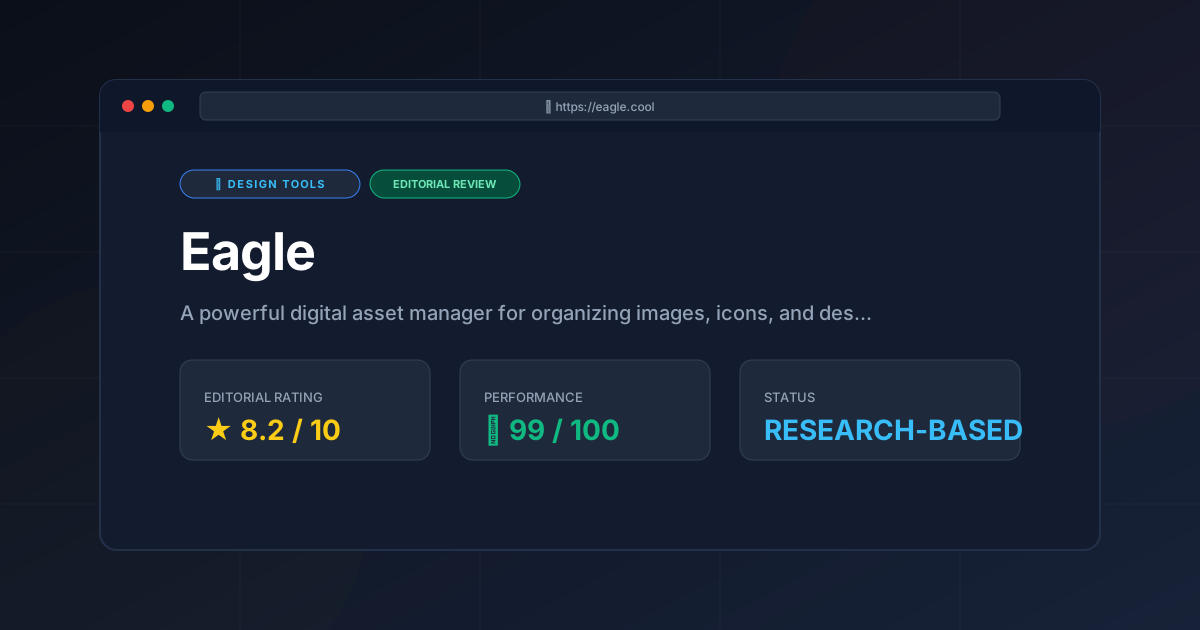
Editorial Rating: 8.2/10 #
A powerhouse for design asset management that empowers designers to take full ownership of their inspiration, held back only by its lack of a mobile ecosystem.
More Tools Worth Reading

v0 by Vercel vs Excalidraw: Which Is Better?
Design ToolsV0 by vercel vs excalidraw: scores, pricing, strengths and trade-offs side by side, and the constraints that actually decide the choice, written from...
v0.dev
Design ToolsAI UI generator for React v0.dev transforms prompts into production-ready code. Discover how to accelerate your frontend workflow with our technical r...
Visily
Design ToolsWireframing tool Visily reviewed: explore AI screenshot-to-design features, pricing, and technical limits to accelerate your product development cycle...