Digital Notebook Review: Evernote (2026) Features & Verdict
⚡ Executive Summary
Digital notebook Evernote reviewed for 2026. Discover if its OCR and web clipping tools justify the price for your knowledge management system.
Disclaimer: This review is based on publicly available information, including official documentation, pricing pages, and public repositories; it is not a laboratory benchmark.
Evernote remains one of the most recognizable names in the productivity landscape. Positioned as a premier digital notebook, it is designed to function as an external brain—a centralized repository where users can capture, organize, and retrieve information from disparate sources. While newer "all-in-one" workspaces have emerged, Evernote continues to trend because of its specialized focus on capture and retrieval rather than complex database management.
For the modern researcher or general user, the appeal lies in the ability to dump unstructured data—PDFs, voice memos, handwritten notes, and web pages—into a single system and find them later using powerful search capabilities. In an era of information overload, the tool's commitment to being a reliable archive makes it a staple for those who prioritize a "capture-first" workflow over a "structure-first" approach.
What is a Digital Notebook? #
A digital notebook is a software application that allows users to create, store, and organize notes, documents, and media in a searchable electronic format. Unlike traditional word processors, these tools typically support non-linear organization through tags and notebooks, enabling the rapid capture of fragmented information and the ability to retrieve it via advanced indexing or OCR.
Key Technical Specifications & Fast Facts #
| Specification | Detail |
|---|---|
| License | Proprietary / Commercial |
| Hosting Type | Cloud-based (SaaS) |
| Free Tier Availability | Yes (Limited) |
| API Access | Available for Developers |
| Supported Platforms | Windows, macOS, iOS, Android, Web |
In-Depth Feature Breakdown & Real-World Use Cases #
Evernote’s technical strength lies in its ability to handle diverse data types without requiring the user to pre-define a schema. Below is a detailed analysis of its core pillars.
1. The Web Clipper #
The Web Clipper is widely regarded as the gold standard for browser-based data acquisition. Unlike simple bookmarking, the clipper allows users to save a simplified version of an article, a full page, or a selected screenshot directly into a specific notebook.
Practical Workflow Example:
A market researcher tracking competitor trends would use the Web Clipper to:
- Capture a full-page snapshot of a competitor's pricing page.
- Use the "Simplified Article" mode to strip ads and distractions from a long-form industry report.
- Tag the note with
#CompetitorAnalysisand#Q3-2026. - Link this note to a broader project tracking system, similar to how one might manage Project Tracking with Asana (2026): Full Review & Guide for task execution.
2. OCR (Optical Character Recognition) Search #
One of Evernote's most potent technical advantages is its OCR engine. The software doesn't just index the text you type; it indexes the text found within images, PDFs, and handwritten notes. This makes it a superior digital notebook for those handling physical archives.
Practical Workflow Example:
Imagine a user who photographs physical receipts or whiteboards during a brainstorming session. Instead of manually transcribing the notes, the user can simply search for a keyword (e.g., "Budget Projection"). Evernote's OCR scans the pixels of the uploaded JPG or PDF and surfaces the exact image containing that text, drastically reducing the time spent on manual data entry.
3. Notebook and Tagging Hierarchy #
Evernote utilizes a dual-layer organization system: Notebooks (for broad categorization) and Tags (for cross-functional filtering). This allows for a non-linear organization style.
Practical Workflow Example:
A graduate student might have a Notebook titled "Thesis - Chapter 1." However, they may have notes in that notebook that relate to "Methodology," "Literature Review," and "Case Studies." By applying these as tags, the student can view all "Methodology" notes across all their different notebooks simultaneously, creating a dynamic web of information rather than a rigid folder structure.
Step-by-Step Getting Started Guide #
To maximize the utility of your digital notebook, users should follow a structured onboarding process to avoid the "digital junk drawer" effect.
- Account Setup & Sync: Create an account at the official Evernote site and install the desktop and mobile applications. Ensure the sync settings are active so that a note captured on a smartphone is immediately available on the desktop.
- Install the Web Clipper: Add the Evernote extension to your preferred browser (Chrome, Firefox, or Safari). This is the primary entry point for most of your data.
- Define Your Notebooks: Create 3-5 high-level notebooks (e.g., Work, Personal, Research, Archive). Avoid creating too many notebooks initially, as tags are more flexible for granular organization.
- Establish a Tagging Convention: Decide on a naming convention for tags (e.g., using prefixes like
status/todo,status/doneortopic/finance). - The "Inbox" Method: Create a notebook called "Inbox." Save everything there first, then spend 10 minutes at the end of each day moving those notes to the correct notebook and adding tags. This prevents the capture process from interrupting your deep work.
Objective Pros & Cons Matrix #
| Pros | Cons |
|---|---|
| Superior Capture: The Web Clipper is unmatched in its ability to archive web content. | Restrictive Free Tier: The free version has significant limits on the number of notes and devices. |
| Powerful Search: OCR capabilities make images and PDFs fully searchable. | Performance Bloat: The application can feel heavy and slow to load compared to minimalist markdown editors. |
| Cross-Platform Sync: Seamless transition between mobile and desktop environments. | Pricing Pressure: The cost of paid tiers is higher than many of its direct competitors. |
| Intuitive Interface: Low learning curve for basic note-taking and organization. | Lack of Advanced Databases: No native support for relational databases or complex tables. |
Evernote vs. Alternatives: Which Digital Notebook Wins? #
When choosing a tool, it is essential to understand whether you need a notebook or a workspace. While Evernote excels at archiving, tools like Notion focus on building systems.
| Feature | Evernote | Notion | OneNote |
|---|---|---|---|
| Primary Strength | Capture & Retrieval | Database & Wiki | Freeform Canvas |
| Search Speed | Very Fast (with OCR) | Moderate | Moderate |
| Organization | Notebooks & Tags | Nested Pages & DBs | Sections & Pages |
| Pricing | Freemium (Expensive Paid) | Freemium (Generous Free) | Free (with MS Account) |
| Best For | Researchers / Archivists | Project Managers / Teams | Students / Visual Thinkers |
For those looking for a broader overview of the current landscape, we recommend checking out our guide on the Best Productivity in 2026: 5 Top Picks Reviewed.
Technical Trade-offs and Edge Cases #
While Evernote is powerful, it is not a universal solution. Users should consider the following technical trade-offs:
Markdown Support #
Unlike Obsidian or Logseq, Evernote does not use a native Markdown-first architecture. While it supports rich text, users who require strict version control via Git or plain-text portability may find the proprietary .enex format limiting.
Data Portability #
Exporting data from this digital notebook can be cumbersome. While the Evernote Help Documentation outlines the export process, moving thousands of notes to a different platform often results in lost formatting or broken internal links.
Sync Latency #
In edge cases involving very large attachments (e.g., 100MB PDFs), sync latency can occur. Users on slower connections may experience "conflict notes," where two versions of the same note are created because the cloud sync could not resolve the edit timing.
Pricing Tiers & Value Assessment #
Evernote operates on a Freemium model. While the free tier allows users to test the interface, it is designed as a "teaser" rather than a sustainable long-term solution for power users. Detailed costs can be found on the official pricing page.
- Free Tier: Ideal for very light users. However, limitations on the number of notes and the number of devices synced make it impractical for anyone using both a laptop and a phone.
- Paid Tiers: These unlock the full potential of the tool, including unlimited note creation, increased upload limits, and offline access.
Is the paid tier worth it?
The value proposition depends entirely on your "search-to-write" ratio. If you are someone who writes a few notes and never looks at them again, the paid tier is overpriced. However, if you are a professional researcher or a "knowledge worker" who manages thousands of documents and relies on OCR to find a specific phrase in a 50-page PDF, the time saved in retrieval justifies the monthly subscription.
Frequently Asked Questions #
Can I use Evernote offline? #
Yes, but offline access is primarily a feature of the paid tiers. Free users generally require an active internet connection to sync and access their full library across devices. Once a note is cached locally on a paid account, it can be edited without internet.
How does Evernote's search differ from a standard Ctrl+F? #
Standard search looks for exact text strings. Evernote's search uses OCR to "read" images and PDFs, meaning it can find text inside a photo of a handwritten menu or a scanned contract, which a standard search cannot do.
Is my data secure in Evernote? #
Evernote uses industry-standard encryption for data in transit and at rest. However, for users with extremely sensitive data, it is worth checking the official site for the latest details on end-to-end encryption options or third-party integration security.
Can I export my notes if I decide to switch tools? #
Evernote allows exporting notes in .enex format. While many competitors can import this format, the transition can sometimes be messy regarding formatting and tags. It is advisable to perform a test export before committing your entire archive.
Does Evernote support collaboration? #
Yes, Evernote allows users to share notebooks or individual notes with other users. While it supports basic collaboration, it lacks the real-time multi-user cursor editing found in tools like Google Docs or Notion.
Final Verdict & Editorial Rating #
Evernote is the "Old Guard" of the productivity world, and for good reason. It does not try to be a project management tool, a CRM, or a website builder. Instead, it focuses on the fundamental act of capturing information and making it retrievable.
The tool's primary weakness is its pricing structure and the occasional "bloat" in its software performance. It lacks the modern, relational database power of Notion, but it compensates with a far more robust capture system and superior search capabilities.
Who should use Evernote?
- Researchers and Academics: Who need to archive hundreds of PDFs and web articles.
- Executive Assistants: Who manage vast amounts of disparate information for multiple stakeholders.
- "Digital Hoarders": Who want a safe, searchable place for every piece of information they encounter.
Who should avoid it?
- Budget-conscious users: Who will find the free tier too limiting and the paid tier too expensive.
- Collaborative Teams: Who need complex task dependencies and kanban boards.
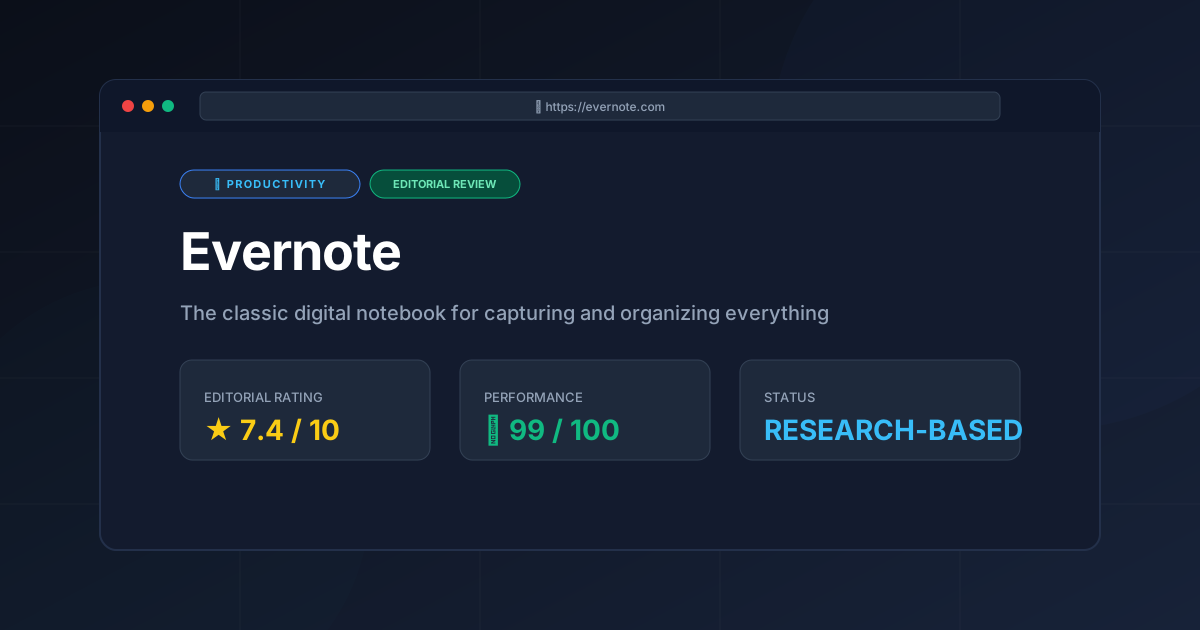
Editorial Rating: 7.4/10 #
Recommendation: Use Evernote if your primary goal is knowledge archiving. If your goal is knowledge construction or project execution, look toward a database-centric tool or a dedicated team scheduler.
More Tools Worth Reading
Screenpipe
ProductivityIn-depth review of Screenpipe in 2026: key features, pricing, alternatives and who it is best for.
Paperclip
ProductivityIn-depth review of Paperclip in 2026: key features, pricing, alternatives and who it is best for.
Hindsight
ProductivityHindsight review: Explore how this open-source agent memory layer eliminates LLM amnesia, cuts token costs, and powers self-learning AI workflows in 2...