Cline AI Review (2026): The Ultimate Autonomous Coding Agent
⚡ Executive Summary
Cline AI is a powerful open-source autonomous coding agent for VS Code. Read our deep-dive review to discover its features, costs, and setup workflows.
The landscape of AI-assisted software development has shifted dramatically from simple inline code autocompletion to fully autonomous agents capable of managing complex, multi-file engineering tasks. Standing at the forefront of this paradigm shift is cline ai (formerly known as Claude Dev), an open-source AI programmer designed to run directly inside your IDE and terminal. As a highly customizable VS Code extension, this tool bridges the gap between raw LLM capabilities and practical, day-to-day software engineering by executing terminal commands, reading and writing files, and autonomously debugging errors.
This review is based on publicly available information, including the official Cline GitHub repository and the official VS Code Marketplace page. It provides an objective analysis of the tool's architecture, features, and real-world performance.
What is Cline AI and Why is it Trending? #
Cline AI is an open-source autonomous coding agent that integrates directly with VS Code to execute complex software development tasks. By utilizing advanced LLMs, it can read and write files, execute terminal commands, and autonomously debug errors, acting as a virtual software engineer within your local development environment.
The tool has surged in popularity among developers because it addresses the core limitations of closed-ecosystem AI editors. By allowing users to bring their own API keys or connect to local models, it offers unprecedented control over data privacy, model selection, and operating costs.
Traditional AI assistants merely suggest code snippets. In contrast, this agent operates on a continuous loop of planning, executing, and observing. When given a high-level prompt (such as "Add a dark mode toggle to our React application and ensure all tests pass"), it breaks the task down into sequential steps, creates a plan, writes the necessary code, runs the test suite in your terminal, and self-corrects based on any compiler or linter errors it encounters.
Technical Architecture & Specifications #
To understand how this agent operates, it is helpful to look at its underlying technical architecture. The extension runs locally on your machine, leveraging the VS Code Extension API to interact with your workspace.
+-----------------------------------------------------------------+
|                           VS Code IDE                           |
|                                                                 |
|  +------------------+   User Prompts   +---------------------+  |
|  |  Cline Extension | ---------------> |  LLM Provider       |  |
|  |  (Local Agent)   | <--------------- |  (Claude, GPT, etc) |  |
|  +------------------+   Tool Calls     +---------------------+  |
|           |                                                     |
|           | Executes Actions                                    |
|           v                                                     |
|  +-----------------------------------------------------------+  |
|  | Local Workspace (Files, Terminal, Browser, Git)           |  |
|  +-----------------------------------------------------------+  |
+-----------------------------------------------------------------+
When you issue a prompt, the agent constructs a system message that details its available tools. It then sends this context to your chosen LLM. The LLM responds with a tool call (such as reading a file or running a command), which the local extension executes. The results of that execution are fed back to the LLM as a new observation, continuing the loop until the task is complete.
| Specification | Details |
|---|---|
| License | Apache 2.0 (Open Source) |
| Hosting Type | Local (VS Code Extension / CLI) |
| Free Tier Availability | 100% Free (User pays only for external LLM API usage) |
| API Access | Supported (Anthropic, OpenAI, OpenRouter, Ollama, LM Studio, Gemini, etc.) |
| Supported Platforms | VS Code, VS Codium, Command Line (CLI) |
| Primary Programming Languages | Language-agnostic (supports any language with terminal/compiler support) |
In-Depth Feature Breakdown & Real-World Use Cases #
The power of this autonomous coding agent lies in its tool-use capabilities. Rather than just generating text, the agent interacts with your local system in a controlled, secure manner.
1. Full Terminal Execution Capabilities #
One of the most powerful features of the agent is its ability to execute commands directly in your local terminal. When it writes code, it does not just hope it works; it can run build commands, execute test suites, and run linters to verify its changes.
- How it works: If the agent modifies a Python script, it can autonomously run
pytestin the terminal. If the tests fail, it reads the traceback output from the terminal, analyzes the error, modifies the code, and runs the tests again until they pass. - Safety Controls: To prevent catastrophic command execution (such as accidental database drops or recursive file deletions), the agent prompts the user for permission before running any terminal command. Users can also configure auto-approve rules for safe commands like
npm run test.
For a broader perspective on how modern autonomous systems manage and acquire capabilities, you can read our AI Agent Skills Review (2026): Best Marketplace for Agent.
2. Interactive File Editing with Diffs #
Unlike older AI tools that rewrite entire files—consuming massive amounts of token context and risking unwanted changes—this agent utilizes a precise search-and-replace mechanism.
<<<<<<< SEARCH
const port = process.env.PORT || 3000;
app.listen(port, () => {
    console.log(`Server running on port ${port}`);
});
=======
const port = process.env.PORT || 8080;
app.listen(port, () => {
    console.log(`Production server running on port ${port}`);
});
>>>>>>> REPLACE
This diff-based editing ensures that only the targeted lines of code are modified. The VS Code interface displays these changes in a side-by-side diff view, allowing developers to review, accept, or reject individual changes before they are committed to the disk.
3. Local and Cloud LLM Flexibility #
When configuring cline ai, developers can choose from a wide variety of LLM providers. This flexibility is crucial for balancing cost, performance, and data privacy.
- Cloud Models: Anthropic's Claude 3.5 Sonnet is highly recommended for complex reasoning. OpenAI's GPT-4o and Google's Gemini Pro are also supported.
- Local Models: Ollama and LM Studio allow you to run models like Llama 3, Qwen, or Mistral locally on your machine.
This local capability is highly valued by enterprise developers who must comply with strict data privacy regulations. By routing the agent through a local Ollama instance, code never leaves the local machine, ensuring complete intellectual property protection.
4. Browser Automation and Web Search #
The agent includes a built-in browser automation tool powered by Puppeteer. This allows it to launch a headless browser, navigate to a local or remote URL, take screenshots, and click on elements.
- Local Testing: If the agent is building a frontend React application, it can start the local development server, open a browser window to
http://localhost:3000, and verify that the UI renders correctly. - Documentation Search: If the agent encounters an unfamiliar API or library, it can use its web search tool to find the latest documentation, ensuring it writes up-to-date code.
If your primary focus is web-based automation and browser control rather than pure code generation, our Browser Use AI Review (2026): Features, Pricing & Verdict provides an excellent comparison of specialized browser agents.
Advanced Workflows & Configuration #
To get the most out of your autonomous agent, you can customize its behavior using advanced configuration options.
Customizing Instructions with .clinerules #
You can guide the agent's behavior by creating a .clinerules file in the root of your workspace. This file acts as a persistent system prompt extension, instructing the agent on your project's specific coding standards, architectural patterns, and preferred libraries.
# Project Rules for Cline
- Always use TypeScript for new files.
- Prefer functional components over class components in React.
- Ensure all API endpoints are documented in the `/docs` directory.
- Run `npm run lint` before marking a task as complete.
Handling Edge Cases and Error Recovery #
While autonomous agents are highly capable, they can occasionally run into issues such as infinite loops, rate limits, or context window exhaustion.
- Infinite Loops: If the agent gets stuck in a loop of running a failing test and making the same modification, you can manually intervene in the chat interface. Simply type a message like "Stop trying to modify the test file; the issue is actually in the database configuration" to redirect the agent.
- Context Window Exhaustion: For very large codebases, sending entire files back and forth can quickly fill the LLM's context window. To mitigate this, use the
.gitignorefile to exclude large directories (likenode_modulesor build artifacts) from the agent's search path.
As autonomous agents move from local IDEs to production pipelines, integrating them with operations platforms becomes essential. For insights into managing AI-driven operations, check out our ArkAI AIOps Review (2026): Features, Pricing & Verdict.
Step-by-Step Getting Started Guide #
Setting up the extension is straightforward, but optimizing it for daily use requires configuring your API connections correctly. Here is how to get started:
Step 1: Install the VS Code Extension #
Open Visual Studio Code, navigate to the Extensions Marketplace (Ctrl+Shift+X or Cmd+Shift+X), search for Cline, and click Install.
Step 2: Configure Your LLM Provider #
Once installed, click on the Cline icon in your VS Code sidebar. You will be prompted to select your API provider:
- For Cloud (Recommended for speed/accuracy): Select Anthropic or OpenRouter, and paste your API key.
- For Local (Free & Private): Ensure Ollama is running on your machine (
ollama run llama3), select Ollama from the dropdown, and specify the model name.
// Example configuration snippet for local Ollama integration
{
  "apiProvider": "ollama",
  "ollamaModelId": "qwen2.5-coder:latest",
  "ollamaBaseUrl": "http://localhost:11434"
}
Step 3: Define Your Workspace and Permissions #
Open the project directory you want to work on. Before issuing your first prompt, review the settings to toggle permissions such as "Allow terminal execution" or "Allow file creation" to match your comfort level.
Step 4: Run Your First Task #
In the chat panel, enter a prompt:
"Analyze the current directory, locate the main entry point, and add a health-check endpoint
/healththat returns a JSON response with status 'OK'."
Watch as the agent reads your directory structure, locates the server file, proposes a diff, and asks for permission to save the changes.
Objective Pros & Cons Matrix #
Pros #
- High Autonomy: Can execute multi-step workflows, run terminal commands, and self-correct without constant user intervention.
- No Vendor Lock-in: Supports a wide array of cloud APIs and local offline models via Ollama.
- Cost Efficiency: Because it is open-source, you only pay for the raw tokens you consume, which is often significantly cheaper than flat-rate developer subscriptions for light users.
- Granular Control: The interactive diff viewer and terminal execution prompts ensure you maintain ultimate control over your codebase.
Cons #
- High Token Consumption: Complex tasks that require multiple iterations can quickly consume hundreds of thousands of tokens, leading to high API bills if using premium models like Claude 3.5 Sonnet.
- Setup Complexity: Unlike polished SaaS alternatives, configuring local models, API keys, and system prompts requires some technical familiarity.
- Context Window Limits: On massive codebases, the agent can struggle with context drift or hitting LLM context window limits during long-running tasks.
Cline vs. Competitors: Direct Comparison #
To understand where this tool fits in the broader ecosystem of AI coding assistants, let's compare it directly to its main competitors: Cursor, Aider, and Claude Code.
| Feature / Metric | Cline | Cursor | Aider | Claude Code |
|---|---|---|---|---|
| Primary Interface | VS Code Extension / CLI | Forked VS Code IDE | Command Line (CLI) | Command Line (CLI) |
| Execution Model | Autonomous Agent (Terminal + Files) | Inline Copilot & Chat | CLI-based Git Agent | CLI-based Agent |
| Pricing Model | Open Source (BYO API Key) | Subscription ($20/mo) | Open Source (BYO API Key) | Usage-based (Anthropic) |
| Local LLM Support | Yes (Ollama, LM Studio) | Limited / Cloud-focused | Yes | No (Anthropic only) |
| Best For | Developers wanting IDE-integrated agentic control | Developers wanting a seamless, out-of-the-box IDE | Terminal power users who love Git integration | Developers deeply integrated into Anthropic's ecosystem |
Pricing Tiers & Value Assessment #
The extension itself is 100% open-source and free to use under the Apache 2.0 license. There are no premium tiers, paywalls, or subscription fees associated with the tool itself.
However, your actual operating cost depends entirely on your choice of LLM provider:
- Local Models (Ollama/LM Studio): Completely free. Your only cost is the electricity required to run the models on your hardware.
- Cloud APIs (Anthropic/OpenRouter): You pay per token. For simple tasks, a run might cost between $0.05 and $0.20. For massive, multi-file refactoring tasks using Claude 3.5 Sonnet, a single complex run can cost between $1.00 and $5.00 due to the large context window being sent back and forth during iterations.
This makes cline ai highly cost-effective for developers who already have API credits or prefer to run local models. For professional developers, the time saved by having an agent autonomously write boilerplate, run tests, and debug errors far outweighs the nominal API costs.
Frequently Asked Questions #
Is Cline safe to use on proprietary or production codebases? #
Yes, provided you configure it correctly. If you use local LLMs via Ollama, your code never leaves your machine. If you use cloud APIs (like Anthropic or OpenAI), your data is subject to their respective API data privacy policies (which generally state that API data is not used to train models). Always obtain permission before running terminal commands proposed by the agent.
How does Cline differ from GitHub Copilot? #
GitHub Copilot is primarily an inline autocomplete tool and chat assistant. It suggests code as you type but cannot run terminal commands, execute tests, or autonomously debug errors across multiple files. Cline is an agent that can plan and execute multi-step engineering tasks independently.
Can I run Cline completely offline? #
Yes. By installing the VS Code extension and connecting it to a local LLM runner like Ollama or LM Studio, the agent can operate entirely offline without an active internet connection.
What LLM is recommended for the best results with Cline? #
For complex software engineering tasks, Claude 3.5 Sonnet (via Anthropic or OpenRouter) is widely considered the gold standard due to its superior coding logic, tool-use capabilities, and large context window. For local execution, models like Qwen-2.5-Coder or Llama-3-Instruct offer respectable performance for smaller tasks.
How do I control API costs when using Cline? #
You can control costs by setting maximum token limits in the extension settings, using cheaper models (like GPT-4o-mini or Claude 3.5 Haiku) for simpler tasks, and carefully reviewing the agent's proposed plan before allowing it to proceed with expensive multi-file edits.
Final Verdict & Editorial Rating: Is Cline AI Worth It? #
This tool represents a major milestone in the evolution of the cline ai ecosystem. By combining the visual convenience of a VS Code extension with the raw power of an autonomous coding agent, it gives developers a highly capable virtual assistant that respects their workflow, privacy, and choice of model.
While it requires a bit of configuration and carries the risk of high API costs for heavy cloud users, its open-source nature, robust diff editing, and terminal integration make it an incredibly powerful tool for modern developers.
PulseTools Editorial Rating #
- Autonomy & Capability: 9.2 / 10
- Integration & UI: 8.5 / 10
- Cost Efficiency: 9.0 / 10 (due to BYO Key flexibility)
- Ease of Setup: 8.0 / 10
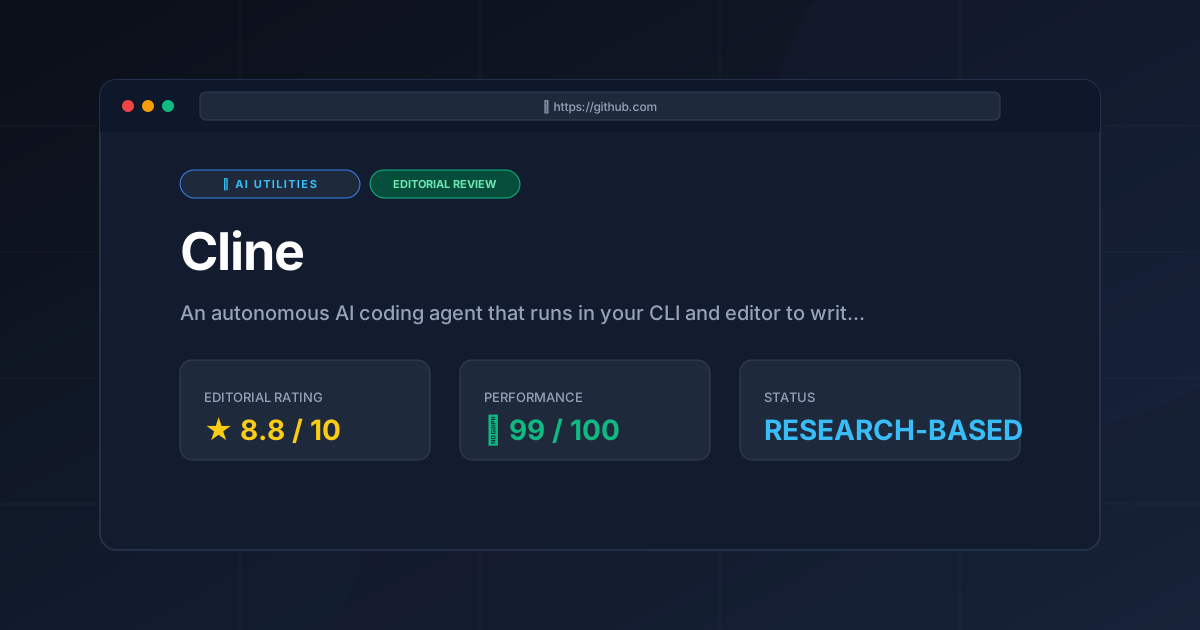
Overall Score: 8.8 / 10
Recommendation: If you are a developer who wants maximum control over your AI tools, values open-source software, and wants an agent that can actually run your tests and compile your code, this extension is an absolute must-have in your VS Code environment.
More Tools Worth Reading
v0.dev
Ai UtilitiesAI UI generator v0.dev reviewed. Learn how this Vercel tool transforms prompts into React code to accelerate your frontend development workflow.
Vercel v0
Ai UtilitiesAI UI generator Vercel v0 reviewed. Learn how to automate React and Tailwind CSS components to accelerate your frontend development workflow today.
Tavily
Ai UtilitiesAI search API Tavily reviewed for 2026. Discover how it optimizes RAG workflows and reduces LLM hallucinations to build better AI agents.