AI UI Generator: Galileo AI Review (2026) & Verdict

⚡ Executive Summary
AI UI generator Galileo AI transforms text into editable Figma designs. Discover if this tool can accelerate your 2026 design workflow and save hours.
Disclaimer: This review is based on publicly available information, including official documentation, pricing pages, and public repositories; it is not based on internal laboratory benchmarks or first-person software installation.
Overview: What is Galileo AI and Why is it Trending? #
Galileo AI represents a paradigm shift in the early stages of the product development lifecycle. While traditional UI/UX design requires a meticulous process of wireframing, mood boarding, and high-fidelity prototyping, Galileo AI attempts to collapse these stages into a single prompt. As a specialized ai ui generator, it transforms natural language descriptions into editable, high-fidelity user interface designs that are ready for professional refinement.
The tool is trending primarily because it addresses the "blank canvas" problem. For developers and product managers who lack formal design training, the jump from a feature requirement document to a polished Figma file is often the steepest part of the build. By leveraging large-scale generative models trained on high-quality UI patterns, Galileo AI allows users to iterate on layout and aesthetic direction in seconds rather than hours. Unlike simple image generators, Galileo produces structured layouts that can be exported and manipulated, making it a functional tool for production pipelines.
What is an AI UI Generator? #
An ai ui generator is a generative design tool that uses artificial intelligence to convert text prompts or wireframes into high-fidelity user interface layouts. Unlike static image generators, these tools create structured, layered design files (typically for Figma) that allow designers to edit individual components, colors, and typography for final production.
Key Technical Specifications & Fast Facts #
| Specification | Detail |
|---|---|
| License | Proprietary / SaaS |
| Hosting Type | Cloud-based |
| Free Tier Availability | Limited Trial/Credits (See Official Pricing) |
| API Access | Available for Enterprise/Select Tiers |
| Supported Platforms | Web Browser, Figma (via Export/Plugin) |
In-Depth Feature Breakdown & Real-World Use Cases #
1. Text-to-UI Generation #
The core engine of Galileo AI is its ability to interpret complex design intent from text. Instead of simply placing a button or a text field, the AI understands the context of the request. For example, asking for a "Modern dashboard for a crypto-wallet with a dark mode theme and a focus on portfolio diversification" will result in a layout that includes specific components like line charts, asset lists, and transaction histories.
Practical Workflow Example:
A developer needs a rapid prototype for a "SaaS Onboarding Flow."
- Prompt: "Create a 3-step onboarding sequence for a B2B CRM. Step 1: Company details. Step 2: Team invitation. Step 3: Integration selection. Use a clean, minimalist aesthetic with a primary blue accent color."
- Result: Galileo generates three distinct screens with logical field placements, consistent spacing, and appropriate UI components.
2. Seamless Figma Export #
One of the most critical technical advantages of this ai ui generator is that it does not output flat images. It generates designs that can be exported directly into Figma. This is where the tool moves from being a conceptual aid to a professional utility. Once in Figma, every layer, vector, and text element is editable.
This allows design teams to use Galileo for the "low-fidelity to mid-fidelity" jump and then apply their own brand guidelines manually. For those looking to implement these designs quickly, integrating these layouts with Modern UI Components: Aceternity UI Review (2026) & Verdict can help bridge the gap between a Figma design and a functional React frontend.
3. Design System Adherence & Consistency #
Galileo AI doesn't just randomize components; it follows established UI patterns. It understands the difference between a "Material Design" look and a "Human Interface Guidelines" (Apple) approach. By adhering to these implicit design systems, the generated outputs are generally usable and accessible, reducing the amount of "fixing" a professional designer must do after the export.
Real-World Use Case:
A startup needs to pivot their mobile app from a consumer-facing tool to an enterprise tool. Instead of redesigning every screen from scratch, they can prompt Galileo to "Redesign the existing user profile page to look like a professional enterprise admin panel," ensuring the layout shifts from a "social" feel to a "data-heavy" feel.
Step-by-Step Implementation Guide #
To maximize the utility of Galileo AI, users should follow a structured approach to prompting and integration:
Phase 1: Prompt Engineering #
Avoid vague terms like "make it look good." Instead, use the Context-Component-Style framework:
- Context: Define the app's purpose (e.g., "An e-commerce app for luxury watches").
- Component: Specify the screens needed (e.g., "A product detail page with a zoomable image gallery and a sticky 'Add to Cart' button").
- Style: Define the visual vibe (e.g., "High-contrast, serif typography, minimalist white space").
Phase 2: Iterative Refinement #
Once the initial design is generated, use the refinement tools to tweak specific sections. If a button is misplaced or a color is off, provide a follow-up prompt to adjust that specific element. This iterative loop is essential for moving from a generic AI output to a tailored product design.
Phase 3: Figma Integration and Cleanup #
Use the export function to move the design into Figma. At this stage, perform the following technical cleanup:
- Layer Organization: Rename AI-generated layers for better handoff.
- Typography Audit: Replace generic fonts with your brand's specific typeface.
- Copywriting: Replace AI-generated filler text with actual product copy.
Phase 4: Development Handoff #
Once the design is polished, developers can use Figma's Dev Mode to extract CSS properties. For those building landing pages, comparing these outputs with a Landing Page Components: MagicUI Review (2026) & Verdict can provide a library of pre-coded components that match the AI's visual style.
Technical Trade-offs and Edge Cases #
While the speed of an ai ui generator is impressive, there are technical limitations to consider:
- The Logic Gap: Galileo AI generates visuals, not user flows. It does not understand the complex business logic behind a button click or the state management required for a multi-step form.
- Accessibility (a11y): While the layouts look professional, the AI may not always adhere to WCAG 2.1 contrast ratios or screen-reader hierarchies. Manual auditing in Figma is mandatory.
- Edge Case Handling: The AI typically generates "happy path" designs. It rarely generates error states, empty states, or loading skeletons unless specifically prompted to do so.
Objective Pros & Cons Matrix #
| Pros | Cons |
|---|---|
| Rapid Prototyping: Reduces the time from idea to visual representation by roughly 80-90%. | Prompt Dependency: Output quality is heavily dependent on the user's ability to write detailed prompts. |
| Figma Compatibility: Editable exports prevent the "dead-end" problem of image-based AI. | Lack of Deep Logic: Does not understand complex business logic or user journey mapping. |
| Low Barrier to Entry: Enables non-designers (Devs/PMs) to communicate visual ideas effectively. | Cost: The paid model can become expensive for high-volume iteration. |
| Pattern Recognition: Excellent at implementing standard UI patterns (e.g., dashboards). | Genericism: Without heavy customization, designs can feel "too standard." |
Galileo AI vs. Alternatives: Which Tool to Choose? #
In the crowded space of AI design tools, Galileo AI positions itself as a high-fidelity generator, whereas others focus more on wireframing or full-site generation.
| Feature | Galileo AI | Uizard | Visily |
|---|---|---|---|
| Primary Strength | High-fidelity Text-to-UI | Rapid Wireframing | AI-powered Wireframe-to-UI |
| Export Quality | High (Editable Figma) | Medium (Internal/Export) | Medium (Editable) |
| Speed | Very Fast (Generative) | Fast (Template-based) | Moderate (Structured) |
| Pricing | Paid / Credit-based | Freemium / Paid | Freemium / Paid |
| Best For | Polished UI starting points | Rapid prototyping | Product Managers mapping flows |
While Galileo AI excels at the visual "finish," those who are still in the brainstorming phase might find a Virtual Whiteboard Review: Excalidraw (2026) Features & Verdict more useful for low-fidelity mapping before moving into high-fidelity generation.
Pricing Tiers & Value Assessment #
Galileo AI operates on a paid model, typically utilizing a credit-based system for generations. Detailed pricing and current credit bundles can be found on the Galileo AI Pricing Page.
Is the paid tier worth it?
- For Freelance Developers: Yes. If a project requires a UI that the client hasn't provided, spending a few dollars on credits to generate a professional starting point is significantly cheaper than hiring a part-time designer.
- For Enterprise Teams: It depends. For large teams with established design systems, Galileo is best used as a "brainstorming" tool rather than a production tool.
- For Hobbyists: Likely no. The cost of credits may outweigh the benefit if you are simply learning UI/UX; manual practice is more valuable for skill acquisition.
Frequently Asked Questions #
Does Galileo AI write the actual code (HTML/CSS/React)? #
No. Galileo AI is an ai ui generator that produces designs. It provides the visual layout and structure in a format compatible with Figma. To turn these into code, you must use Figma's Dev Mode or manually implement the designs using a frontend framework.
Can I upload my own brand guidelines for Galileo to follow? #
Currently, Galileo relies primarily on text prompts to define style. While you can describe your brand (e.g., "Use #FF5733 as the primary color and Inter as the font"), it does not "ingest" a full brand book or PDF guidelines in the way a human designer would.
How does it differ from an AI website builder like Framer AI? #
Framer AI builds a functional, hosted website. Galileo AI builds a design file. If you need a live site immediately, a Best AI Website Builder? Framer AI Review (2026) & Verdict is the better route. If you need a precise design to be developed by a team, Galileo is the correct tool.
Is the output unique, or is it just pulling from templates? #
It uses generative AI, meaning it synthesizes new layouts based on patterns it has learned from vast datasets of high-quality UI. While it may feel similar to common patterns (because it follows UX best practices), it is not simply "copy-pasting" a template.
Can I use Galileo AI for mobile app design specifically? #
Yes. The tool is capable of generating both desktop and mobile layouts. By specifying "Mobile App" or "iOS/Android" in your prompt, the ai ui generator will adjust the aspect ratio and component sizing to fit mobile screen standards.
Final Verdict & Editorial Rating #
Galileo AI is a powerful "accelerator" for the design process. It does not replace the need for a UX designer—because UX is about user psychology, accessibility, and business logic, none of which an AI can truly "solve"—but it absolutely replaces the tedious hours spent pushing pixels to create a first draft.
The tool is most effective when used as a bridge between a written requirement and a Figma file. Its ability to produce high-fidelity, editable assets puts it ahead of simple image generators and gives it a competitive edge over basic wireframing tools. However, the reliance on a paid credit system and the occasional "generic" feel of the outputs prevent it from being a perfect 10.
Final Score: 7.8/10 #
Who should use it?
- Developers who want to build professional-looking apps without a dedicated designer.
- Product Managers who need to create high-fidelity mockups for stakeholder presentations.
- UX Designers who want to bypass the "blank page" phase and start their work from a 60% completed draft.
More Tools Worth Reading

v0 by Vercel vs Excalidraw: Which Is Better?
Design ToolsV0 by vercel vs excalidraw: scores, pricing, strengths and trade-offs side by side, and the constraints that actually decide the choice, written from...

v0.dev
Design ToolsAI UI generator for React v0.dev transforms prompts into production-ready code. Discover how to accelerate your frontend workflow with our technical r...
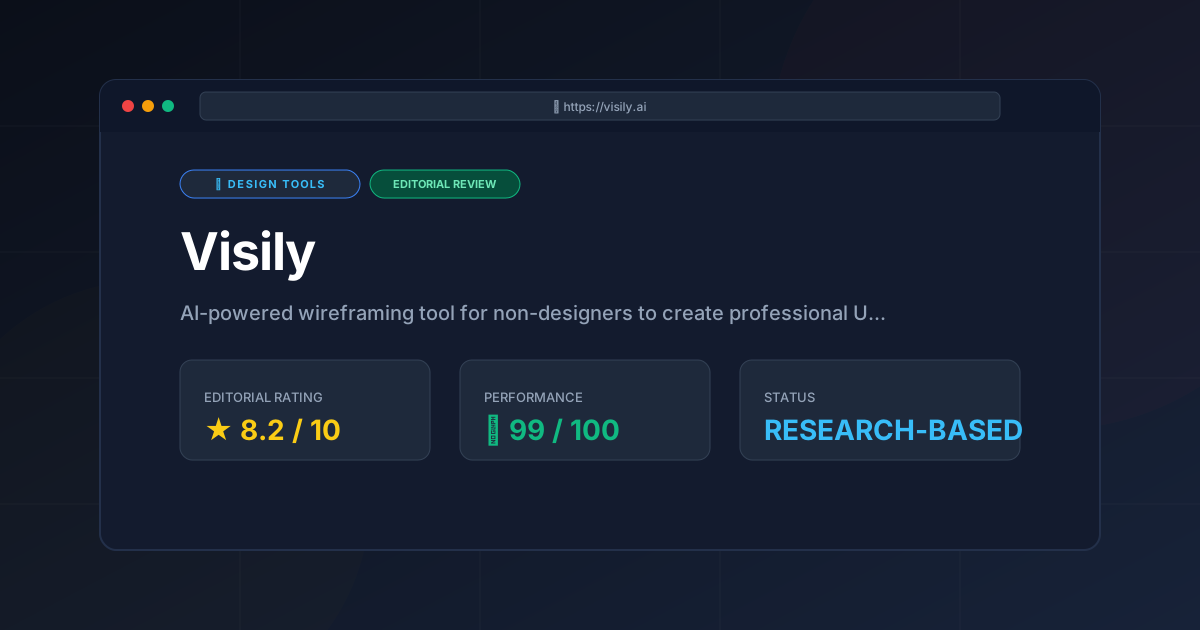
Visily
Design ToolsWireframing tool Visily reviewed: explore AI screenshot-to-design features, pricing, and technical limits to accelerate your product development cycle...