Kanban Board Review: Is Trello Still the Best in 2026?
⚡ Executive Summary
Kanban board software analyzed. Discover if Trello is the right visual project management tool for your team and why it remains a top choice in 2026.
Disclaimer: This review is based on publicly available information, including official documentation, pricing pages, and public repositories; it is not a laboratory benchmark.
Overview: What is Trello and Why is it Trending? #
Trello is a visual project management application that leverages the kanban board methodology to help individuals and teams organize tasks into a streamlined, card-based system. At its core, Trello operates on a hierarchy of Boards, Lists, and Cards. This spatial approach to data organization allows users to see the state of a project at a glance, moving tasks from "To Do" to "Doing" and finally to "Done."
In 2026, Trello remains trending because of its low barrier to entry. While many modern productivity tools have succumbed to "feature bloat"—becoming overly complex enterprise resource planning (ERP) systems—Trello maintains a focus on intuitive, visual simplicity. It appeals specifically to those who find traditional spreadsheets or rigid Gantt charts oppressive. By prioritizing the "drag-and-drop" experience, it caters to the cognitive preference for spatial organization, making it a staple for creative agencies, small startups, and personal organization.
What is a Kanban Board? #
A kanban board is a visual workflow management tool that represents work items as cards and stages of a process as columns. It allows teams to visualize their work, limit work-in-progress (WIP), and maximize efficiency by moving tasks from left to right across the board until completion.
Key Technical Specifications & Fast Facts #
| Specification | Detail |
|---|---|
| License | Proprietary |
| Hosting Type | Cloud (SaaS) |
| Free Tier Availability | Yes (Freemium) |
| API Access | Yes (REST API available) |
| Supported Platforms | Web, iOS, Android, macOS, Windows |
In-Depth Feature Breakdown & Real-World Use Cases #
Trello’s utility is derived from three primary technical pillars: the kanban board architecture, Butler automation, and the Power-Ups ecosystem.
1. The Kanban Board Architecture #
The fundamental unit of Trello is the Board. Within a board, users create Lists (vertical columns) and Cards (individual tasks). Each card can contain checklists, due dates, attachments, and comments. To get started, users can visit the official Trello site to set up their first workspace.
Real-World Use Case: Content Editorial Pipeline
A marketing team can implement a workflow as follows:
- List 1: Ideation (Cards for raw topic ideas)
- List 2: Researching (Cards currently being vetted)
- List 3: Drafting (Cards assigned to writers)
- List 4: Review/Legal (Cards awaiting approval)
- List 5: Published (Completed tasks)
This visual flow eliminates the need for status update meetings, as the board serves as the "single source of truth."
2. Butler Automation #
Butler is Trello's built-in automation engine. It allows users to create rules, buttons, and scheduled commands without writing code. Butler uses a "trigger-action" logic.
Workflow Example: Automated Quality Assurance
A team can set a Butler rule: "When a card is moved into the 'Review' list, add the 'QA Team' member to the card and set the due date to 48 hours from now."
This reduces manual administrative overhead and ensures that no task stalls due to a lack of notification. For those seeking even more robust automation and integrated doc management, comparing this to a ClickUp Project Management Review (2026): Is It the Best can highlight the difference between Trello's simplicity and ClickUp's complexity.
3. Power-Ups (Integrations) #
Power-Ups are add-ons that integrate third-party services or add advanced functionality to a board. Since Trello keeps its core lean, Power-Ups allow users to customize the tool to their specific needs.
Practical Integration Example: Calendar Sync
By enabling the Calendar Power-Up, a user can toggle their board view from a kanban board layout to a monthly calendar. This is essential for deadline-driven projects. If your team manages high-volume meetings alongside these tasks, integrating a Best Scheduling Tool for Teams: Cal.com Review (2026) would complement Trello's task tracking with precise time-blocking.
Technical Implementation: Step-by-Step Guide #
To deploy Trello effectively, follow this implementation path to ensure your workflow is scalable and efficient.
Phase 1: Workspace Configuration #
- Account Setup: Create an account at Trello.com. Choose the Free tier initially to map your workflow.
- Board Creation: Create your first board. Give it a clear name (e.g., "Q4 Product Roadmap"). Set the visibility to "Private" for personal use or "Workspace" for team collaboration.
- Defining the Workflow: Create your lists. Avoid creating too many; start with the classic "To Do," "Doing," and "Done" to prevent cognitive overload.
Phase 2: Data Entry and Organization #
- Populating Cards: Add tasks as cards. Use Labels (color-coded tags) to categorize tasks by priority (e.g., Red = Urgent, Green = Low Priority).
- Adding Detail: Click into a card to add a description, a checklist for sub-tasks, and a member assignment.
- Managing Attachments: Use the attachment feature to link directly to cloud documents. This prevents the "where is the file?" friction common in large teams.
Phase 3: Optimization and Scaling #
- Implementing Automation: Navigate to the "Automation" button and create your first Butler rule to automate repetitive movements.
- Expanding Capability: Browse the "Power-Ups" directory to link your Google Drive, Slack, or GitHub repositories.
- Setting WIP Limits: While Trello doesn't enforce Work-In-Progress (WIP) limits natively, teams should establish a manual rule (e.g., "No more than 3 cards in the 'Doing' list") to prevent bottlenecks.
Objective Pros & Cons Matrix #
| Pros | Cons |
|---|---|
| Extreme Ease of Use: Virtually zero learning curve for new users. | Scaling Issues: Boards become cluttered and slow when containing hundreds of cards. |
| Visual Clarity: Excellent for high-level project oversight. | Limited Native Reporting: Lacks built-in advanced analytics or Gantt charts in the free tier. |
| Flexible Application: Works for everything from grocery lists to software sprints. | Dependency on Power-Ups: Many "essential" features require third-party integrations. |
| Strong Mobile App: Seamless synchronization between desktop and mobile. | Lack of Hierarchy: No native "sub-boards" or folders for boards; organization is flat. |
Trello vs. Competitors: Direct Comparison #
Trello occupies the "Simple" end of the project management spectrum. When compared to Monday.com or Asana, the trade-off is between flexibility and power.
| Feature | Trello | Monday.com | Asana |
|---|---|---|---|
| Primary View | Kanban Board | Customizable Table | List/Board/Timeline |
| Learning Curve | Very Low | Moderate | Moderate |
| Automation | Butler (Rule-based) | Advanced Workflows | Robust Rule Engine |
| Pricing | Freemium (Generous) | Tiered (Paid focus) | Freemium (Limited) |
| Best For | Small teams, simple flows | Complex ops, CRM | Mid-to-large corporate projects |
| Speed | Fast (Lightweight) | Moderate (Feature-heavy) | Moderate |
For those who find Trello too simple and Monday.com too expensive, exploring the Best Productivity in 2026: 5 Top Picks Reviewed can provide a balanced middle-ground alternative.
Pricing Tiers & Value Assessment #
Trello utilizes a Freemium model. For a detailed breakdown of current costs, refer to the official Trello Pricing Page. The general structure remains:
- Free Tier: Ideal for individuals and very small teams. It provides unlimited cards and a limited number of boards per workspace.
- Standard/Premium Tiers: These introduce advanced checklists, larger attachment limits, and more sophisticated administrative controls.
- Enterprise Tier: Focused on security, organization-wide permissions, and centralized billing.
Is the paid tier worth it?
For 80% of users, the Free tier is sufficient. The paid tiers become valuable only when you hit the "Board Limit" or when your organization requires strict permission sets (e.g., restricting who can move cards). If you are a freelancer or a team of five, the Free tier is an industry-leading value proposition. For larger organizations, the cost is justified by the administrative oversight tools.
Edge Cases and Technical Trade-offs #
While Trello is powerful, certain technical constraints can impact high-level project management:
The "Flat Structure" Problem
Trello lacks a native folder hierarchy. If you have 50 different boards, the dashboard becomes a wall of tiles. To solve this, advanced users often create a "Master Board" where cards act as links to other boards.
Performance Degradation
As a card-based system, Trello's DOM (Document Object Model) can struggle when a single kanban board exceeds 500-1,000 cards. Users will notice lag in drag-and-drop actions. The solution is to archive completed cards frequently to keep the board lightweight.
API Limitations
For developers, Trello offers a robust REST API. However, those requiring deep, bi-directional synchronization with complex databases may find the API rate limits restrictive compared to enterprise tools like Jira. For technical documentation on these capabilities, the Trello API Documentation provides the necessary endpoints and authentication protocols.
Frequently Asked Questions #
Can Trello be used for Agile/Scrum development? #
Yes, but with caveats. Trello is perfect for the "Sprint Board" aspect of Scrum. However, it lacks native "Burndown Charts" or "Story Point" tracking. To use Trello for full Agile development, you will need to install Power-Ups specifically designed for Agile metrics.
How does Trello handle data security? #
Trello is part of the Atlassian suite, meaning it adheres to enterprise-grade security standards, including SOC2 and GDPR compliance. For highly sensitive data, users should utilize the Enterprise tier for enhanced security controls and administrative auditing.
Is Trello better than a simple To-Do list? #
Yes, because of the context. A list tells you what to do; a kanban board tells you where the task is in the process. The visual movement of a card provides a psychological sense of progress that a checked box does not.
Can I integrate Trello with my calendar? #
Yes. Through the Calendar Power-Up or via third-party integration tools like Zapier, you can sync Trello card due dates with Google Calendar or Outlook. This ensures that your task deadlines are visible alongside your scheduled meetings.
Does Trello support offline editing? #
Trello's mobile apps offer limited offline capabilities, allowing you to view cards. However, full functionality requires an internet connection to sync changes across the cloud, as it is primarily a SaaS-based tool.
Final Verdict & Editorial Rating #
Trello remains the gold standard for visual task management. Its brilliance lies in its restraint; by not trying to be everything to everyone, it excels at being the most accessible kanban board tool on the market.
However, it is not a universal solution. Power users who require deep data dependencies, complex resource allocation, or native Gantt charts will find Trello frustratingly limited. It is a "horizontal" tool—broadly applicable but not deeply specialized.
Who should use Trello?
- Freelancers managing multiple clients.
- Small creative teams (Design, Content, Marketing).
- Individuals organizing personal life or study plans.
- Teams who prioritize "visual flow" over "data reporting."
Who should avoid Trello?
- Large-scale engineering teams requiring deep Jira-like integration.
- Project managers who rely heavily on Critical Path Method (CPM) or complex dependencies.
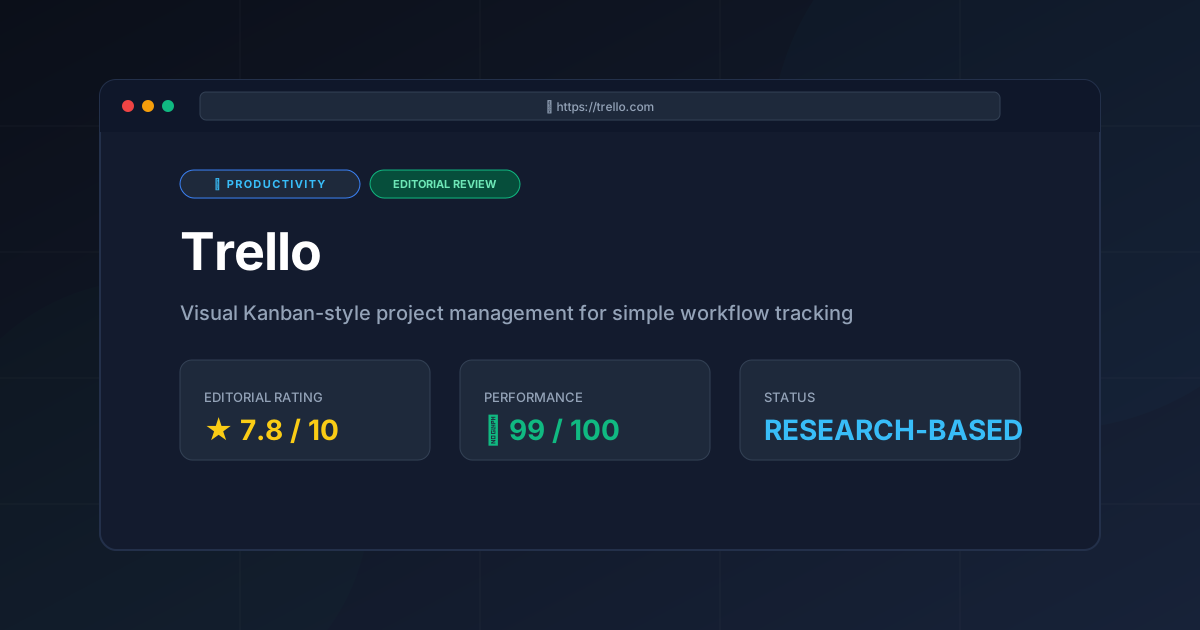
Editorial Rating: 7.8/10 #
Trello loses points for its lack of native advanced reporting and its flat organizational structure, but it earns a high score for its unmatched usability and generous free tier.
More Tools Worth Reading
Screenpipe
ProductivityIn-depth review of Screenpipe in 2026: key features, pricing, alternatives and who it is best for.
Paperclip
ProductivityIn-depth review of Paperclip in 2026: key features, pricing, alternatives and who it is best for.
Hindsight
ProductivityHindsight review: Explore how this open-source agent memory layer eliminates LLM amnesia, cuts token costs, and powers self-learning AI workflows in 2...