Fast Calendar Review: Notion Calendar (Cron) 2026 Guide
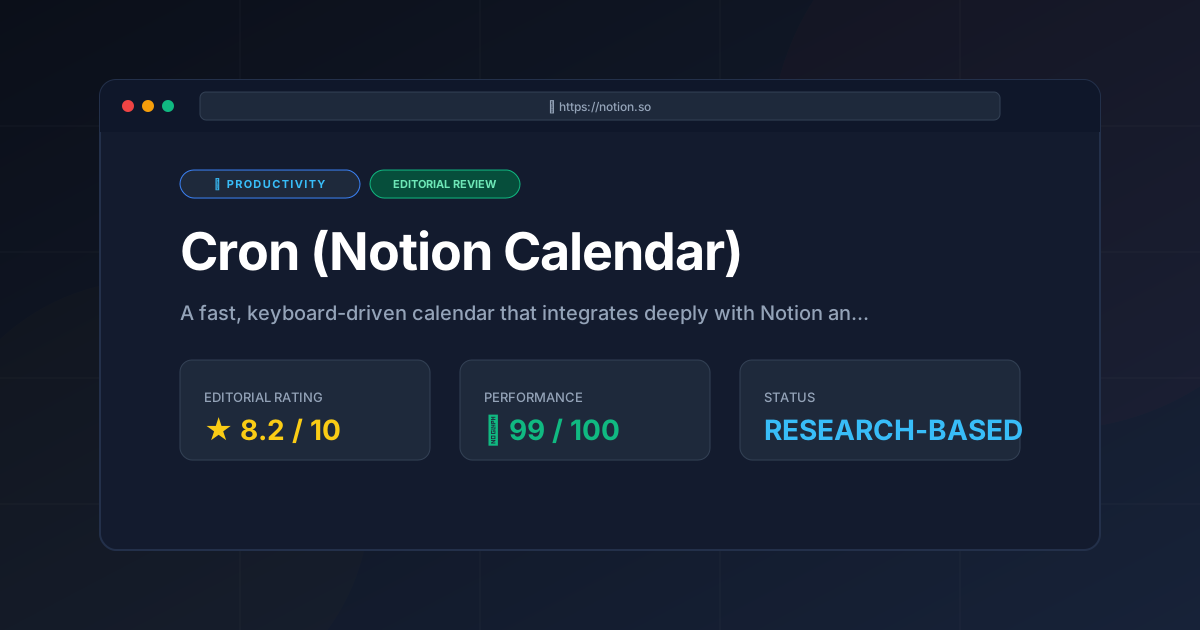
⚡ Executive Summary
Fast calendar performance meets deep Notion integration. Discover if Notion Calendar is the right scheduling tool for your 2026 productivity stack.
Disclaimer: This review is based on publicly available information, including official documentation, pricing pages, and public repositories; it is not based on laboratory benchmarks or first-person installation.
Overview: What is Notion Calendar and Why is it Trending? #
Notion Calendar, formerly known as Cron, represents a fundamental shift in how professionals interact with their time. While traditional calendars act as static grids of appointments, Notion Calendar is engineered as a high-performance interface for Google Calendar, augmented by a deep, bidirectional integration with the Notion workspace. For those seeking a fast calendar experience, this tool eliminates the latency and menu-diving associated with legacy web interfaces.
The tool has trended rapidly because it addresses a specific friction point in the modern productivity stack: the "context switch." For years, professionals have had to jump between their project management tool (Notion) and their scheduling tool (Google Calendar). Notion Calendar eliminates this gap by allowing users to see their Notion database items—such as deadlines, sprint dates, or content calendars—directly alongside their meetings.
Beyond the Notion ecosystem, it is gaining traction as a fast calendar because it prioritizes keyboard shortcuts and a command-palette-first philosophy. This appeals specifically to developers, managers, and power users who find standard calendar interfaces sluggish or overly simplistic.
What is a Fast Calendar? #
A fast calendar is a scheduling interface optimized for low-latency interaction and keyboard-centric navigation. Unlike traditional calendars that rely on mouse-clicks and nested menus, a fast calendar utilizes command palettes and shortcuts to allow users to switch views, search events, and manage availability in seconds, significantly reducing the cognitive load of time management.
Key Technical Specifications & Fast Facts #
| Specification | Detail |
|---|---|
| License | Proprietary |
| Hosting Type | Cloud-based (SaaS) |
| Free Tier Availability | Yes (See Official Pricing) |
| API Access | Via Google Calendar & Notion APIs |
| Supported Platforms | macOS, Windows, iOS, Web |
In-Depth Feature Breakdown & Real-World Use Cases #
1. The Command Palette & Keyboard-First Workflow #
The core technical appeal of the official Notion Calendar is its speed. Rather than relying on nested menus, the tool utilizes a Command Palette (Cmd+K or Ctrl+K). This allows users to jump between different time views (Day, Week, Month), search for specific events, or switch calendars without leaving the keyboard.
Real-World Use Case:
Imagine a Project Manager managing three different Google Calendars (Work, Personal, Side Project). Instead of clicking through a sidebar to toggle visibility, they can use the command palette to instantly filter views or jump to a specific date in the future, significantly reducing the "time-to-action." This efficiency is what defines the fast calendar experience.
2. Deep Notion Database Integration #
Unlike traditional calendar syncs that simply import a URL, Notion Calendar allows users to link specific Notion databases. If a database has a "Date" property, those entries appear as blocks on the calendar.
Workflow Example:
- The Setup: A marketing team has a "Content Pipeline" database in Notion with a "Publish Date" property.
- The Integration: By connecting this database to Notion Calendar, the publish dates appear as calendar events.
- The Action: The user can drag and drop a "Blog Post" event from Tuesday to Thursday on the calendar; this action automatically updates the date property within the original Notion database.
3. Quick Scheduling Links (Availability Sharing) #
To compete with dedicated scheduling tools for teams like Cal.com, Notion Calendar implements "Scheduling Links." This allows users to share a window of availability rather than sending a static list of times.
Technical Workflow:
- User selects a few available slots on their grid.
- The tool generates a unique link.
- The recipient selects a slot, and the event is automatically written to the user's Google Calendar.
This removes the "email ping-pong" typically associated with setting up meetings and maintains the momentum of a fast calendar workflow.
4. Multi-Calendar Overlay #
Notion Calendar acts as a sophisticated "skin" or client for Google Calendar. It allows for the overlay of multiple accounts, providing a unified view of a user's entire professional and personal life without the need to merge accounts into a single messy inbox.
Step-by-Step Configuration & Implementation Guide #
To implement Notion Calendar into a professional workflow, follow these structural steps:
Phase 1: Initial Connection #
- Account Connection: Visit the official site and sign in using your Google Account. Since Notion Calendar is built on top of Google Calendar, this is a mandatory requirement for event synchronization.
- Notion Workspace Linkage: Navigate to the settings menu and connect your Notion Workspace. This grants the tool permission to read and write to your Notion databases via the Notion API.
Phase 2: Database Mapping #
- Identify Date Properties: Ensure your Notion databases have a "Date" property. Without this, the item cannot be mapped to a time slot.
- Database Addition: In the calendar sidebar, select "Add Notion Database" and choose the relevant project or task list.
- Filter Configuration: Use the filter settings to hide completed tasks so your fast calendar view remains uncluttered.
Phase 3: Optimization #
- Shortcut Familiarization: Open the Command Palette (Cmd+K) to explore the available shortcuts. We recommend mapping your most-used views (e.g., "Week View") to your muscle memory immediately.
- Availability Setup: Configure your "Working Hours" in the settings to ensure that when you share scheduling links, you aren't accidentally offering slots at 3:00 AM.
Objective Pros & Cons Matrix #
| Pros | Cons |
|---|---|
| Extreme Speed: Keyboard-driven navigation is significantly faster than Google Calendar's UI. | Google Dependency: It is not a standalone calendar; it requires a Google Calendar account to function. |
| Bi-directional Sync: Updating a date in the calendar updates the Notion database instantly. | Limited Ecosystem: Does not currently support Outlook or iCloud calendars natively. |
| Clean Aesthetics: Minimalist, modern interface that reduces visual clutter. | Learning Curve: Power users love the shortcuts, but casual users may find the keyboard-first approach daunting. |
| Free Access: Currently provides high-end productivity features at no cost. | Privacy Concerns: Deep integration means Notion has access to both your schedule and your workspace data. |
Notion Calendar vs. Competitors: Direct Comparison #
When evaluating this against other modern calendar options, the distinction lies in the ecosystem.
| Feature | Notion Calendar | Google Calendar | Fantastical |
|---|---|---|---|
| Primary Strength | Notion Integration | Ubiquity & Ecosystem | Natural Language Input |
| Speed | Very High (Cmd+K) | Moderate | High |
| Pricing | Free | Free / Paid (Workspace) | Subscription Based |
| Notion Sync | Native / Deep | None (Third-party only) | None |
| Best For | Notion Power Users | General Public | Apple Ecosystem Power Users |
Pricing Tiers & Value Assessment #
As of the current official pricing documentation, Notion Calendar is Free.
Value Assessment:
From a technical standpoint, the value proposition is immense. Most "power-user" calendars require a monthly subscription to access advanced features like scheduling links and multi-calendar overlays. By offering these for free, Notion is essentially using the calendar as a "gateway drug" to bring more users into the Notion ecosystem.
Is there a hidden cost? The "cost" is primarily data centralization. By using Notion Calendar, you are consolidating your time management and project management into a single proprietary ecosystem. For most professionals, this is a fair trade-off for the efficiency gained by using a fast calendar.
Frequently Asked Questions #
Can I use Notion Calendar if I don't use Notion? #
Yes. While the Notion integration is the standout feature, the tool functions as a high-performance Google Calendar client. You can use the command palette and scheduling links without ever creating a Notion account, though you will miss the database synchronization capabilities.
Does it support Outlook or Apple Calendar? #
Currently, Notion Calendar is built specifically for Google Calendar. If your organization relies exclusively on Microsoft Exchange or iCloud, this tool will not be a viable primary calendar without first syncing those accounts to Google via a third-party bridge.
Is my data safe with this integration? #
Notion Calendar uses OAuth for Google and Notion connections. It does not "own" your calendar data; it acts as an interface. However, users should review the permissions granted during the onboarding process to ensure they are comfortable with the level of access.
How does it differ from a standard Notion Calendar view inside a database? #
A Notion database "Calendar View" is a way to visualize data within a page. Notion Calendar is a full-fledged scheduling application. The former is for project tracking; the latter is for time management, meeting coordination, and rapid scheduling.
How do I troubleshoot sync issues between Notion and the Calendar? #
Most sync issues are caused by missing "Date" properties in the Notion database. Ensure the property is correctly formatted as a Date. If the issue persists, disconnecting and reconnecting the Notion Workspace in the settings usually resolves the API handshake.
Final Verdict & Editorial Rating #
Notion Calendar (formerly Cron) is a masterclass in reducing friction. It doesn't reinvent the calendar; instead, it optimizes the interaction with the calendar. By focusing on speed, keyboard shortcuts, and the elimination of the gap between "tasks" (Notion) and "time" (Google Calendar), it provides a professional-grade experience that is currently unmatched in the free tier of the market.
However, the strict dependency on Google Calendar is a significant limitation for enterprise users locked into the Microsoft ecosystem. Furthermore, while it is a powerful productivity tool for 2026, it is a specialized tool rather than a general-purpose one.
Who should use it?
- Notion Power Users: Absolute must-have for database management.
- Google Calendar Users: Highly recommended for those who find the standard UI slow.
- Freelancers: Excellent for using the scheduling links to manage clients efficiently.
Who should avoid it?
- Outlook/iCloud Purists: The lack of native support makes it impractical.
- Minimalists: If you only have two meetings a week, the power-user features are unnecessary overhead.
Editorial Rating: 8.2/10 #
The score reflects the exceptional UX and integration, tempered by the lack of support for non-Google calendar providers.
More Tools Worth Reading
Screenpipe
ProductivityIn-depth review of Screenpipe in 2026: key features, pricing, alternatives and who it is best for.
Paperclip
ProductivityIn-depth review of Paperclip in 2026: key features, pricing, alternatives and who it is best for.
Hindsight
ProductivityHindsight review: Explore how this open-source agent memory layer eliminates LLM amnesia, cuts token costs, and powers self-learning AI workflows in 2...