Akiflow Review (2026): Master Time Blocking & Tasks
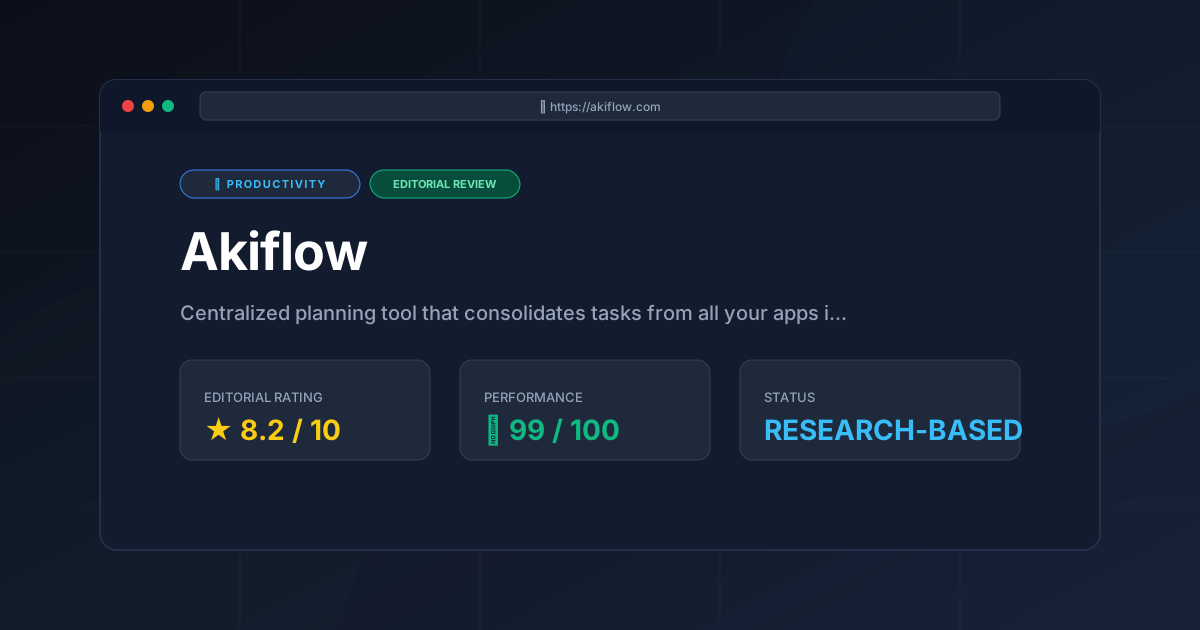
⚡ Executive Summary
Time blocking made easy: Our deep dive into Akiflow's task consolidation and calendar integration to help you reclaim your workday.
Disclaimer: This review is based on publicly available information, including official documentation, the pricing page, and public feature sets; it is not a laboratory benchmark.
Overview: What is Akiflow and Why is it Trending? #
Akiflow is a centralized planning tool designed to eliminate "app switching" by consolidating tasks from various third-party platforms into a single, time-blocked calendar. It acts as a command center for executives, developers, and freelancers who struggle with fragmented to-do lists across multiple software ecosystems.
The tool is trending because it addresses the "productivity paradox": the more tools we use to organize our work (Slack, Jira, Asana, Gmail), the more time we spend managing the tools rather than doing the work. By treating a calendar as the primary source of truth, Akiflow shifts the user's mindset from a static list of "things to do" to a realistic schedule of "when I will do them." This approach is a cornerstone of the best productivity in 2026: 5 top picks reviewed, where the focus has shifted from simple tracking to intentional time allocation.
Key Technical Specifications & Fast Facts #
| Specification | Detail |
|---|---|
| License | Proprietary / Subscription |
| Hosting Type | Cloud-based (SaaS) |
| Free Tier Availability | Free Trial available (No permanent free tier) |
| API Access | Yes (via integrations and official connectors) |
| Supported Platforms | macOS, Windows, Web |
In-Depth Feature Breakdown & Real-World Use Cases #
1. Unified Inbox for Task Consolidation #
The core value proposition of Akiflow is its ability to pull tasks from disparate sources into one "Inbox." Instead of checking five different apps, users can import tasks from tools like Gmail, Slack, ClickUp, and Asana.
Real-World Workflow:
Imagine a Developer who receives a bug report via Slack, a feature request via Jira, and a meeting request via Email. In a traditional setup, these live in three silos. With Akiflow, these are consolidated into a single list. The user can then triage these items—assigning a priority or a due date—without ever leaving the Akiflow interface. This reduces the cognitive load associated with context switching.
2. Time Blocking Calendar #
Unlike a standard calendar that only tracks appointments, Akiflow allows users to drag and drop tasks directly onto a calendar grid. This is the essence of time blocking: assigning a specific duration of time to a specific task.
Practical Application:
An Executive might have a "Deep Work" block from 9:00 AM to 11:00 AM. They can drag three high-priority tasks from their unified inbox into that window. If a meeting is scheduled over that block, the user can simply slide the task to a new open slot. This transforms a wish-list of tasks into a concrete commitment of time. For those who need advanced scheduling for external guests, integrating this with a modern calendar review: is Cron the best scheduling tool for can provide a comprehensive view of both internal planning and external availability.
3. Keyboard-First Command Bar #
To cater to power users and developers, Akiflow implements a command bar (similar to Spotlight or Raycast). This allows for rapid task entry and navigation without relying on a mouse.
Workflow Example:
Instead of clicking "New Task" $\rightarrow$ "Type Name" $\rightarrow$ "Set Date" $\rightarrow$ "Save," a user can hit a shortcut (e.g., Cmd + K) and type: "Review Q3 Report tomorrow at 2pm #Work". The tool parses the natural language, creates the task, assigns the date, and tags it—all in seconds.
Step-by-Step Getting Started Guide #
To implement Akiflow effectively, follow this structured onboarding sequence:
- Centralize Your Sources: Navigate to the integrations menu and connect your primary communication and project management tools (e.g., Google Calendar, Slack, Jira).
- The Great Triage: Open your Unified Inbox. Go through every imported task and either:
- Delete it (if obsolete).
- Schedule it (assign a date).
- Snooze it (if it's not relevant until next week).
- Map Your Day: Move to the Calendar view. Drag your "Must-Do" tasks into open slots. Ensure you leave "buffer blocks" (15–30 minutes) between tasks to account for overruns.
- Master the Shortcuts: Spend 10 minutes practicing the Command Bar. Learn the shortcuts for switching views and creating tasks to maximize speed.
- Review and Reflect: At the end of the day, move any unfinished tasks to tomorrow. This prevents the "overdue task pile-up" that often kills motivation in traditional to-do apps.
Objective Pros & Cons Matrix #
| Pros | Cons |
|---|---|
| Extreme Consolidation: Reduces the need to open multiple tabs/apps for task management. | Steep Price Point: Significantly more expensive than basic to-do lists or calendars. |
| Reduced Friction: Command bar and drag-and-drop interface make planning very fast. | No Permanent Free Tier: The lack of a free version makes it a high-risk entry for casual users. |
| Intentionality: Forces users to acknowledge the physical limits of their time. | Integration Dependency: Its value is tied to how well it syncs with other tools; sync lags can occur. |
| Clean UX: Minimalist design that avoids the clutter found in enterprise tools. | Learning Curve: Mastering the keyboard shortcuts and triage system takes time. |
Akiflow vs. Competitors: Direct Comparison #
When evaluating time blocking tools, Akiflow sits in a competitive space alongside Sunsama and Motion.
| Feature | Akiflow | Sunsama | Motion |
|---|---|---|---|
| Primary Focus | Speed & Consolidation | Mindful Planning | AI-Automated Scheduling |
| Scheduling | Manual Drag-and-Drop | Guided Daily Ritual | AI-driven Auto-scheduling |
| Speed | Very High (Command Bar) | Moderate (Guided) | High (Automated) |
| Pricing | Premium | Premium | Premium |
| Best For | Power users / Developers | Wellness-focused pros | Busy execs who hate planning |
While Akiflow focuses on the user's control over their schedule, Motion uses AI to move tasks automatically. If you prefer a more open-source or team-centric approach to scheduling, you might explore the open source scheduling: Cal.com review (2026) & guide.
Pricing Tiers & Value Assessment #
According to the Akiflow pricing page, the tool operates on a paid subscription model. Unlike many productivity apps that offer a "Free Forever" tier with limited features, Akiflow typically offers a free trial followed by a monthly or annual fee.
Is the paid tier worth it?
For a freelancer or executive billing $100+/hour, the value is found in "recovered time." If Akiflow saves 15 minutes of context switching per day, it pays for itself within the first week. However, for a student or a casual user with a simple to-do list, the cost is likely unjustifiable. The value is proportional to the complexity of your tech stack; the more apps you use, the more valuable Akiflow becomes.
Frequently Asked Questions #
Q: Does Akiflow replace my project management tool (like Jira or Asana)?
A: No. Akiflow is a planning layer, not a storage layer. You still use Jira for ticket tracking and Asana for project roadmaps. Akiflow simply pulls the tasks assigned to you from those tools so you can schedule them on your calendar.
Q: Can I use Akiflow for team collaboration?
A: Akiflow is primarily designed as a personal productivity tool. While it syncs with team tools, it is not a replacement for a shared team calendar or a collaborative project board.
Q: How does the "Unified Inbox" handle duplicates?
A: This depends on the integration. Most users find that by carefully selecting which projects or labels to sync from their source apps, they can avoid clutter. It is recommended to check the official documentation for specific sync settings.
Q: Is there a mobile app for on-the-go planning?
A: Akiflow focuses heavily on the desktop experience for deep planning. Users should check the official site for the current status of mobile companion apps, as the primary workflow is optimized for keyboard and mouse.
Final Verdict & Editorial Rating #
Akiflow is a powerhouse for those who feel drowned by their own notifications and task lists. It doesn't try to be a new project management system; instead, it acts as the "glue" that holds existing systems together.
However, the tool is not without trade-offs. The lack of a free tier is a significant barrier to entry, and the manual nature of its time blocking (compared to Motion's AI) means the user must still be disciplined about their planning. Furthermore, the reliance on third-party APIs means that if a source app changes its API, sync issues can occur.
Editorial Rating: 8.2/10
Who should use it?
- Developers who live in Jira/GitHub and want a fast, keyboard-driven way to plan their day.
- Executives managing multiple streams of communication who need a single source of truth.
- Freelancers juggling multiple clients across different platforms.
Who should skip it?
- Users with simple needs who can be served by a basic calendar and a notepad.
- Those looking for a free productivity tool.
- People who prefer AI to handle their scheduling automatically.
Key Takeaways #
- Core Function: Consolidates tasks from multiple apps into one time-blocked calendar.
- Power Feature: Keyboard-first command bar for rapid task entry.
- Main Trade-off: High cost and no permanent free tier.
- Ideal User: High-output professionals with fragmented digital workflows.
- Verdict: An elite tool for intentional planning, provided you are willing to pay the premium.
More Tools Worth Reading
Screenpipe
ProductivityIn-depth review of Screenpipe in 2026: key features, pricing, alternatives and who it is best for.
Paperclip
ProductivityIn-depth review of Paperclip in 2026: key features, pricing, alternatives and who it is best for.
Hindsight
ProductivityHindsight review: Explore how this open-source agent memory layer eliminates LLM amnesia, cuts token costs, and powers self-learning AI workflows in 2...